
Black and White Conversion in Photoshop: A Practical Guide
Converting a colour photograph to black and white in Photoshop might sound simple, but getting a good black and white conversion is a different matter altogether.
Most beginners just remove the colour and end up with a flat, lifeless image. The real craft of black and white photography lies in tonal separation, contrast, and texture. When done properly, a black and white conversion can make a photograph feel far more dramatic and expressive than the original colour version.
In this guide we’ll look at several ways to convert colour images to black and white in Photoshop, along with some tips for achieving stronger tonal depth and detail.
How to Convert a Colour Photo to Black and White in Photoshop
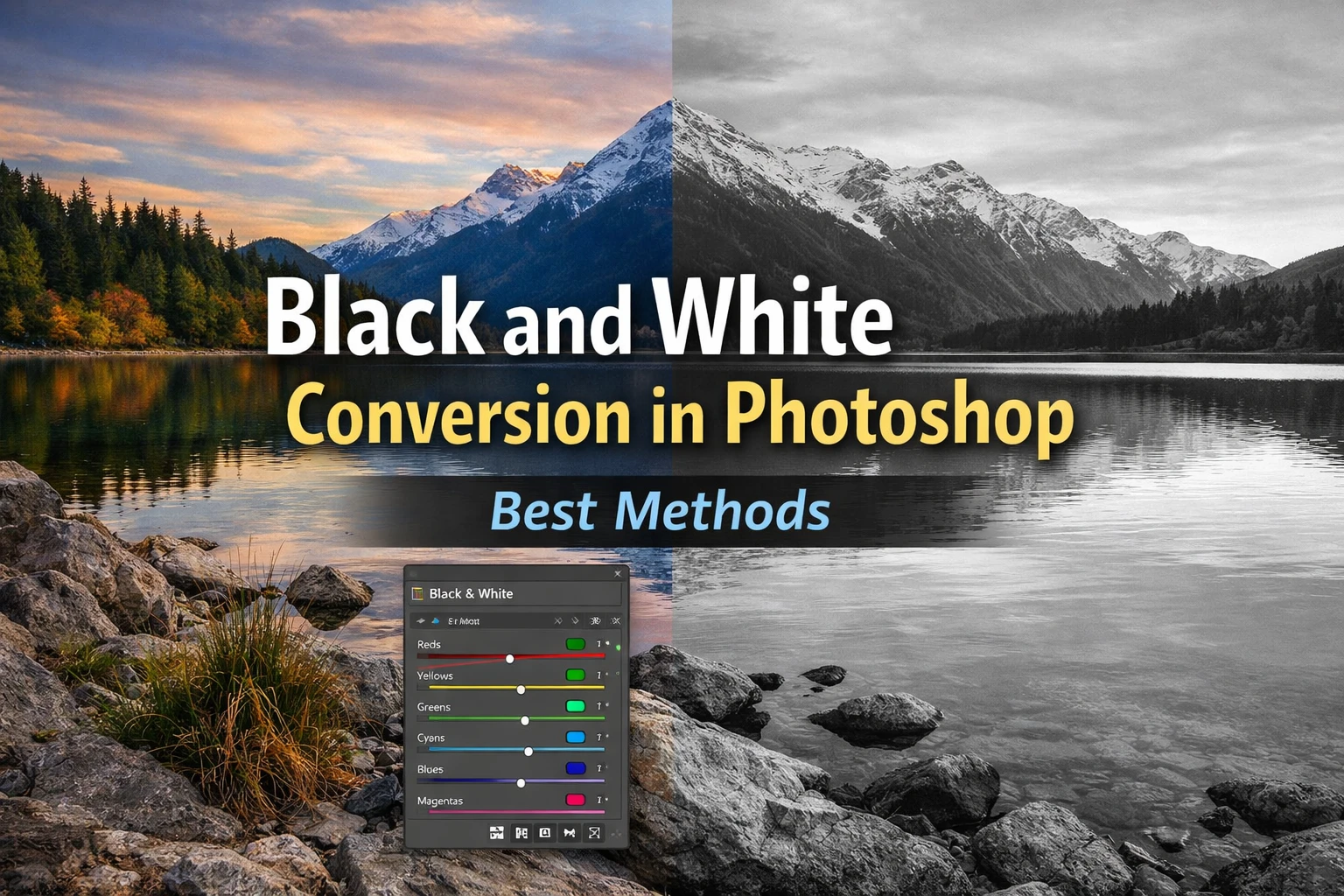
To convert a colour photo to black and white in Photoshop, add a Black & White adjustment layer from the Layers panel. This allows you to control how colours translate into tones using sliders for reds, yellows, greens, cyans, blues and magentas, producing a much better result than simply desaturating the image.
Seps:
- Open your image in Photoshop
- Click Layer → New Adjustment Layer → Black & White
- Adjust the colour sliders to control tones
- Fine-tune contrast if needed
Why Simple Desaturation Usually Looks Poor
The quickest way to convert an image to black and white in Photoshop is:
Image → Adjustments → Desaturate
While this removes the colour instantly, it rarely produces the best result.
Desaturation simply strips out colour information without giving you control over how different colours translate into tones. For example:
- blue skies may become dull grey
- foliage can lose separation
- skin tones may look muddy
In other words, you lose control over the relationship between colours and tones, which is essential in good black and white photography.
Method 1: Using the Black & White Adjustment Layer
One of the most effective ways to convert an image to black and white in Photoshop is with the Black & White adjustment layer.
You can add it from:
Layer → New Adjustment Layer → Black & White
This method gives you sliders for different colour ranges, including:
- Reds
- Yellows
- Greens
- Cyans
- Blues
- Magentas
By adjusting these sliders you can control how each colour translates into brightness in the final monochrome image.
For example:
- darkening blues can deepen the sky
- lightening yellows can brighten foliage
- adjusting reds can refine skin tones in portraits
This approach gives far more creative control than simple desaturation.
Method 2: Using a Gradient Map
Another powerful technique for black and white conversion is the Gradient Map adjustment layer.
To use it:
- Add a new Gradient Map adjustment layer
- Select a black-to-white gradient
Photoshop then maps the darkest parts of the image to black and the lightest areas to white, with midtones falling in between.
Gradient maps often produce a clean and balanced conversion, especially when combined with curves or contrast adjustments afterwards.
Many photographers prefer this method because it tends to maintain smooth tonal transitions.
Method 3: Channel-Based Conversions
A more advanced technique involves using colour channels to control the tonal balance of the final image.
Different colour channels often contain very different contrast information. For example:
- the red channel often works well for portraits
- the green channel can provide strong midtone detail
- the blue channel frequently contains more noise but strong sky contrast
By experimenting with channels or using tools like the Channel Mixer, you can create conversions that emphasise particular tonal structures within the photograph.
This approach can produce very dramatic results, especially in landscape photography.
Adding Depth and Texture to Your Black and White Images
One of the biggest problems with digital black and white conversions is that they can sometimes look a little flat.
This usually happens when there isn’t enough separation between tones or when fine detail lacks local contrast.
Improving the micro contrast in an image can help reveal subtle textures such as:
- tree bark
- rock surfaces
- architectural detail
- clouds and sky structure
Enhancing these small tonal differences can make the photograph feel far more dimensional.
Using Micro Contrast to Improve Black and White Conversions
After converting an image to black and white, I often add a little extra local contrast to bring out texture and fine detail.
For this purpose I created a small Photoshop plugin called Micro Contrast, which boosts subtle tonal differences without pushing overall contrast too far.
It’s particularly useful for:
- landscapes
- architecture
- black and white photography
because it helps reveal detail and structure that might otherwise feel a bit muted.
If you’d like to try it, you can find it here:
https://www.digitalblackandwhite.co.uk/downloads/micro-contrast/
Used carefully, micro contrast can add that extra bit of presence that makes a black and white image really stand out.
Final Thoughts
Black and white conversion in Photoshop isn’t just about removing colour. The real goal is to create a photograph with strong tonal relationships, depth, and texture.
Using tools like the Black & White adjustment layer, gradient maps, or channel-based methods gives you far more control over the final result.
Once the tonal structure is in place, subtle adjustments to contrast and local detail can make the image feel richer and more expressive.
With a little practice, you’ll find that converting colour photographs to black and white can open up an entirely new way of seeing your images.
